
Transfer logs
See who sent what and when, and how recipients acted. Use the logs for auditing and troubleshooting.
1Viewing logs
Open the transfer log from “Logs” in the header. Operations related to your transfers are listed newest first.
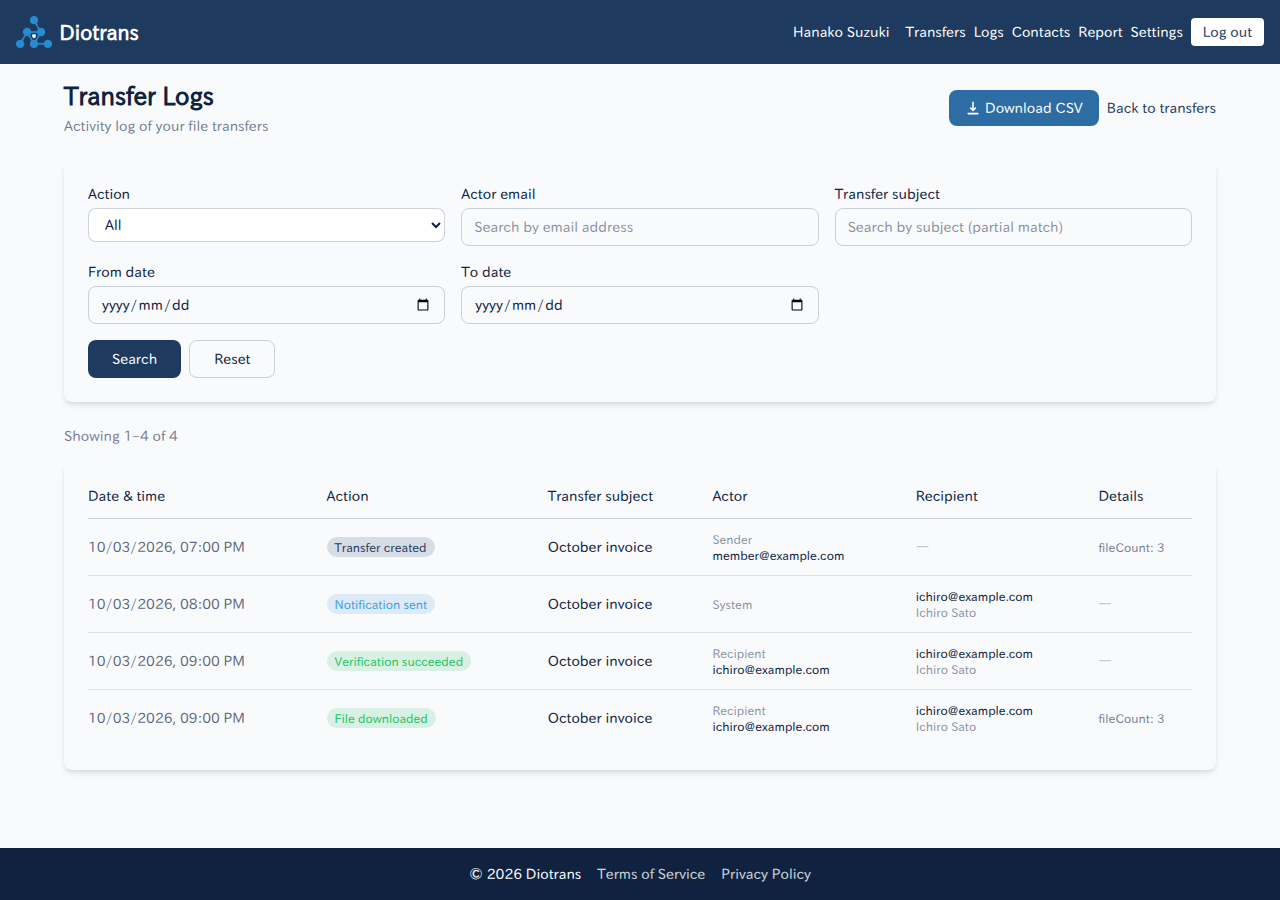
| Action | Description |
|---|---|
| Transfer created | The transfer was created. |
| Notification sent | The notification email was sent to a recipient. |
| Verification succeeded | A recipient completed email verification. |
| File downloaded | A recipient downloaded files. |
| Transfer deleted | The transfer was deleted. |
2Filtering and CSV export
- Filter by action, actor email, transfer subject, start date, and end date. The subject search is a partial match.
- “Download CSV” saves the currently filtered logs as a CSV file.
- “Reset” clears the filters.
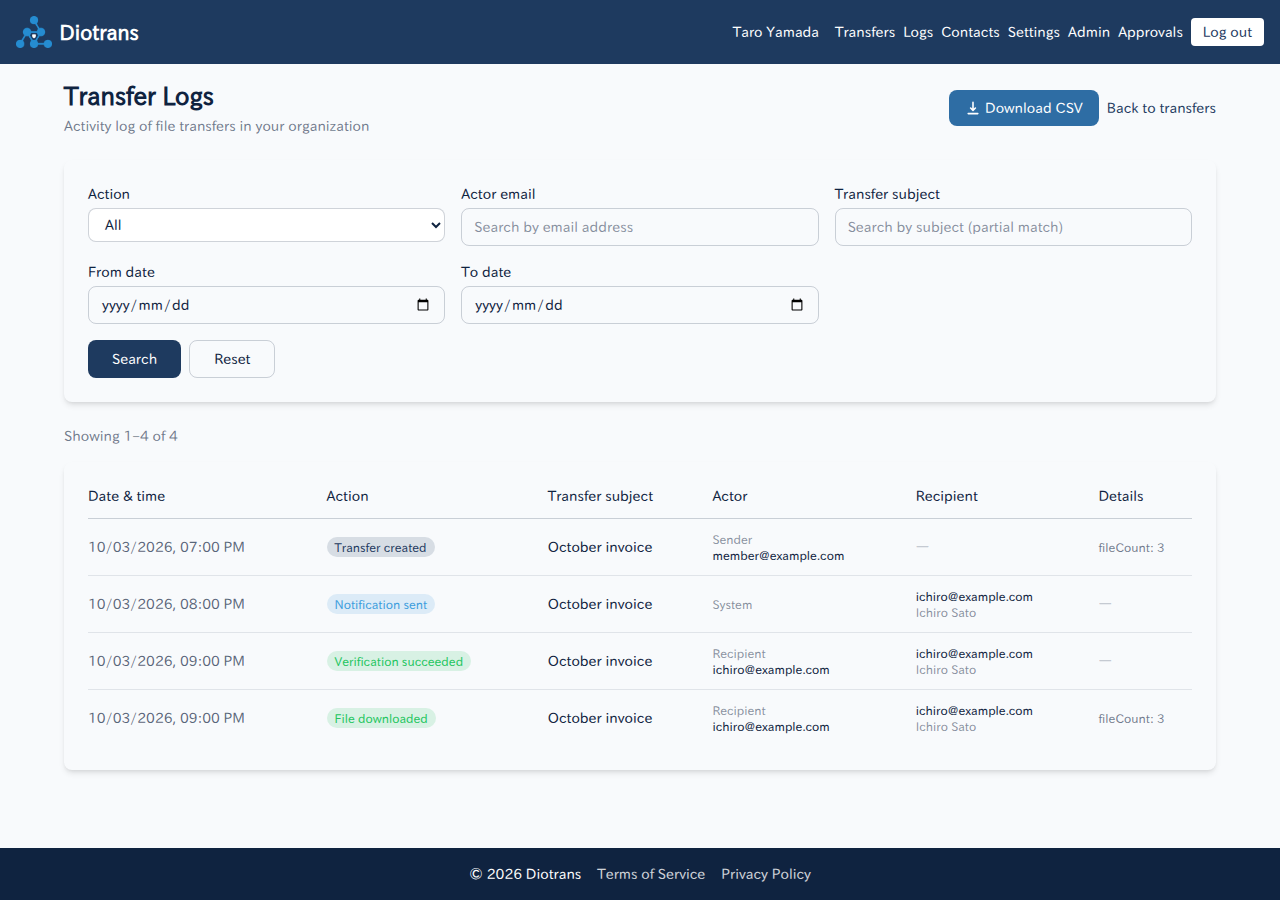
3Logs for administrators
Administrators can view logs for the whole organization. Login history and abuse alerts appear in the admin dashboard; handling reports alongside logs is described in Announcements and audit.
Log retention
Logs can be viewed regardless of subscription status. After a contract ends (organization deletion), personal information is anonymized, and logs are deleted after the retention period (2 years by default).