
Pending transfers
In organizations that require approval, transfers created by members wait for an administrator. Review the contents and approve or reject them.
1Approval flow
Open “Approvals”
Open the pending list from “Approvals” in the header. The subject, sender, files, recipients, and creation date are shown.
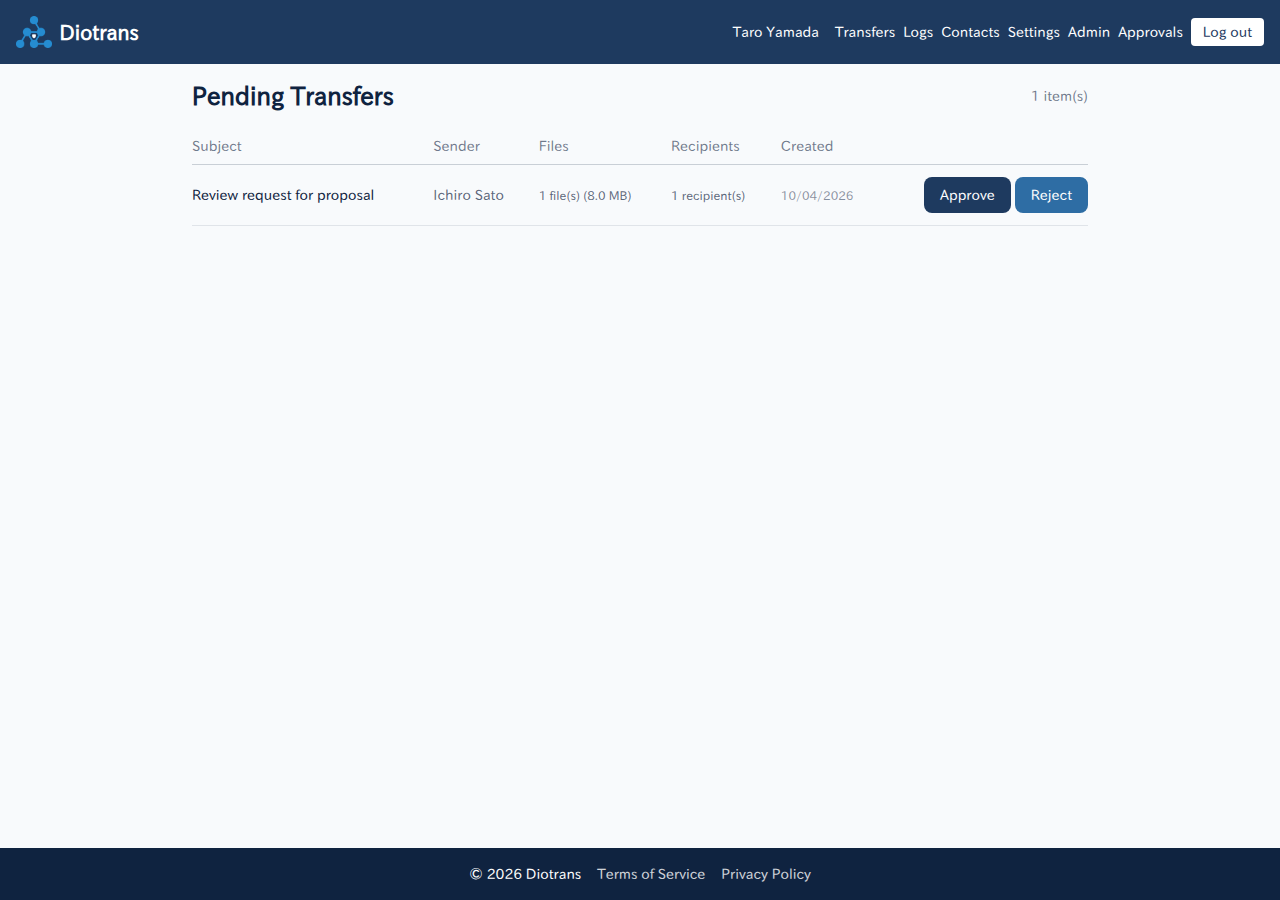
The pending transfers list. Review the contents
Choose a subject to review the transfer: sender, files, recipients, and message.
Choose “Approve” or “Reject”
Approving sends the notification email to recipients. Rejecting means the transfer is not sent.
2The approval setting
Toggle approval under “Settings > Organization”, “Require administrator approval before sending”. See Organization and storage for details.
Transfers created by administrators also require approval. If there is only one administrator, they approve their own transfers. Change the setting if you want a different approval flow.