
Contacts
Save the people you send to often, and pick them from the list when creating a transfer. There are two kinds of contacts: personal and organization-shared.
1Types of contacts
| Type | Description |
|---|---|
| Personal contacts | Visible only to you. You add, edit, and delete them yourself. |
| Organization-shared contacts | Visible to all members of the organization. Only administrators can add, edit, or delete them. Members can view them and pick them as recipients. |
2Adding a contact
Choose “+ Add contact”
Open the form from the top right of the Contacts screen.
Enter the type and details
Type (personal / organization-shared), name, and email address are required. Company/organization and job title are optional. Only administrators can choose organization-shared.
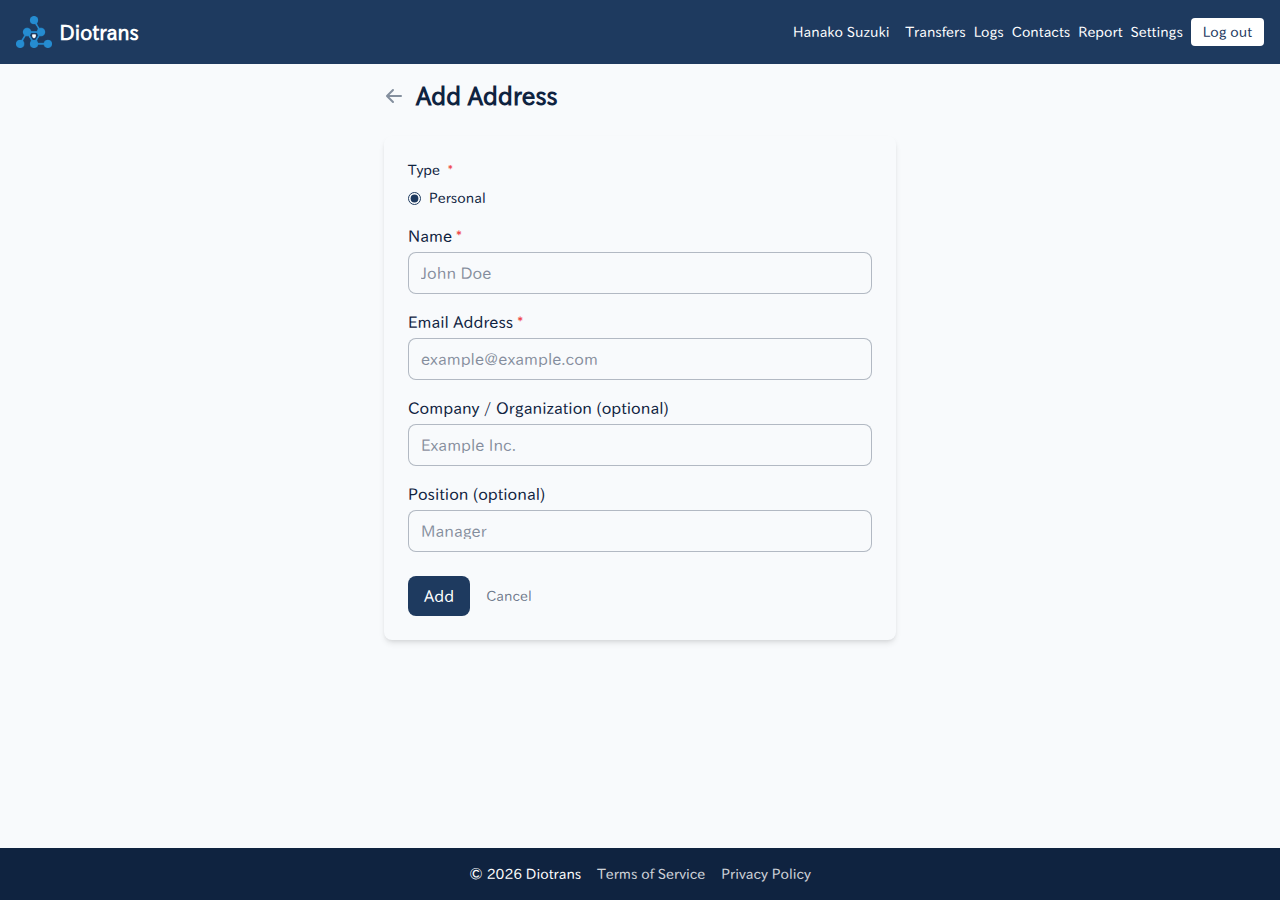
Adding a contact. Only administrators can choose organization-shared. Choose “Add”
The contact appears in the list. Use the pencil icon to edit and the trash icon to delete.
3The list and editing
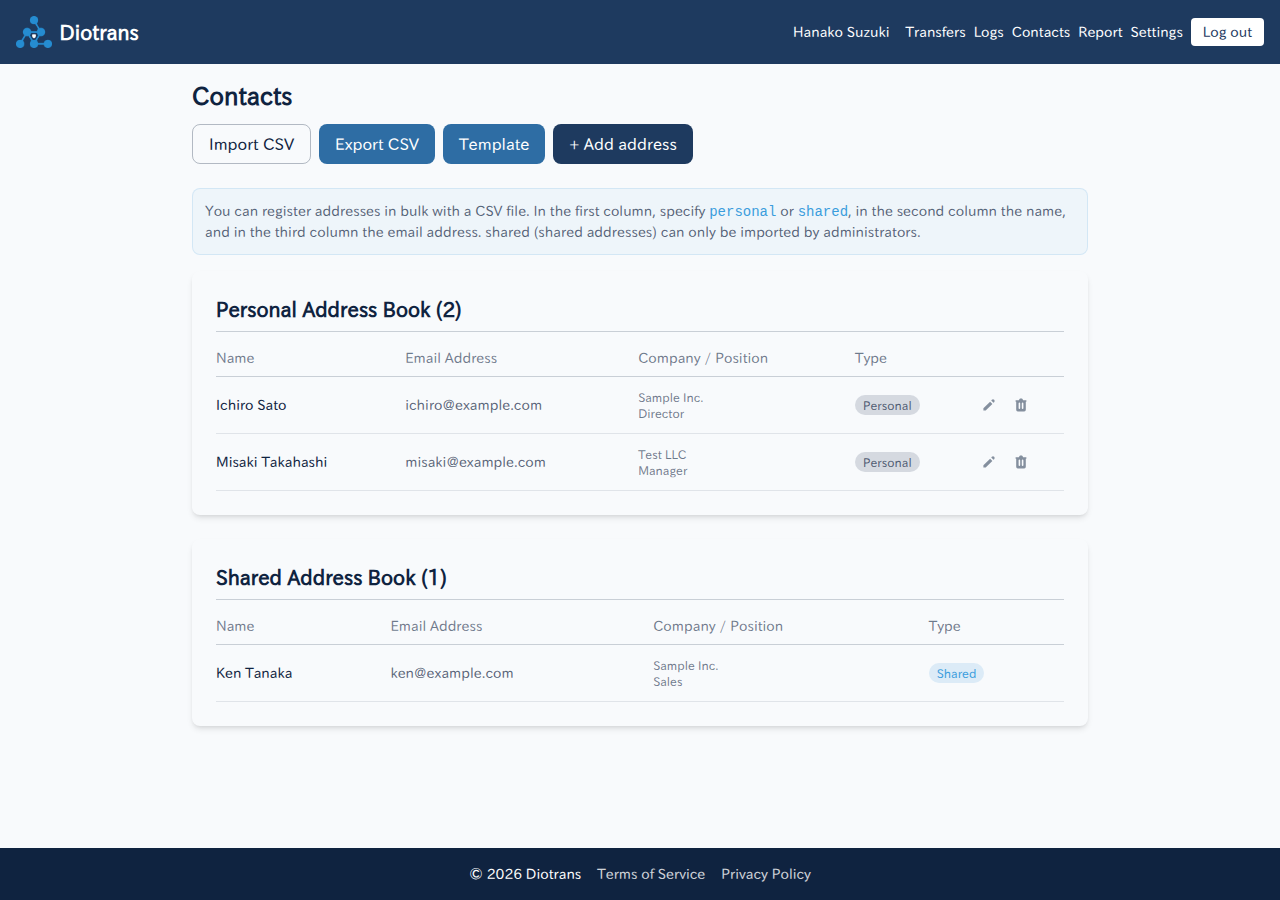
- “CSV import” lets you add many contacts at once.
- “CSV export” saves your current contacts as a CSV file.
- “Template” downloads a sample CSV for importing.
4Importing from CSV
Create the CSV in the following format.
| Column | Content |
|---|---|
| 1st | personal or shared (organization-shared) |
| 2nd | Name |
| 3rd | Email address |
Only administrators can import rows marked shared. To avoid garbled text, save the file in the same format as the template.
5Using contacts in transfers
On the transfer creation screen, choose “Select from contacts” to add recipients from your address book. See Sending files for details.
Only administrators can edit or delete organization-shared contacts. Members see them as read-only.