
Settings and profile
This page covers settings for your own account: display language, profile, signature, subscription, data export, and account deletion.
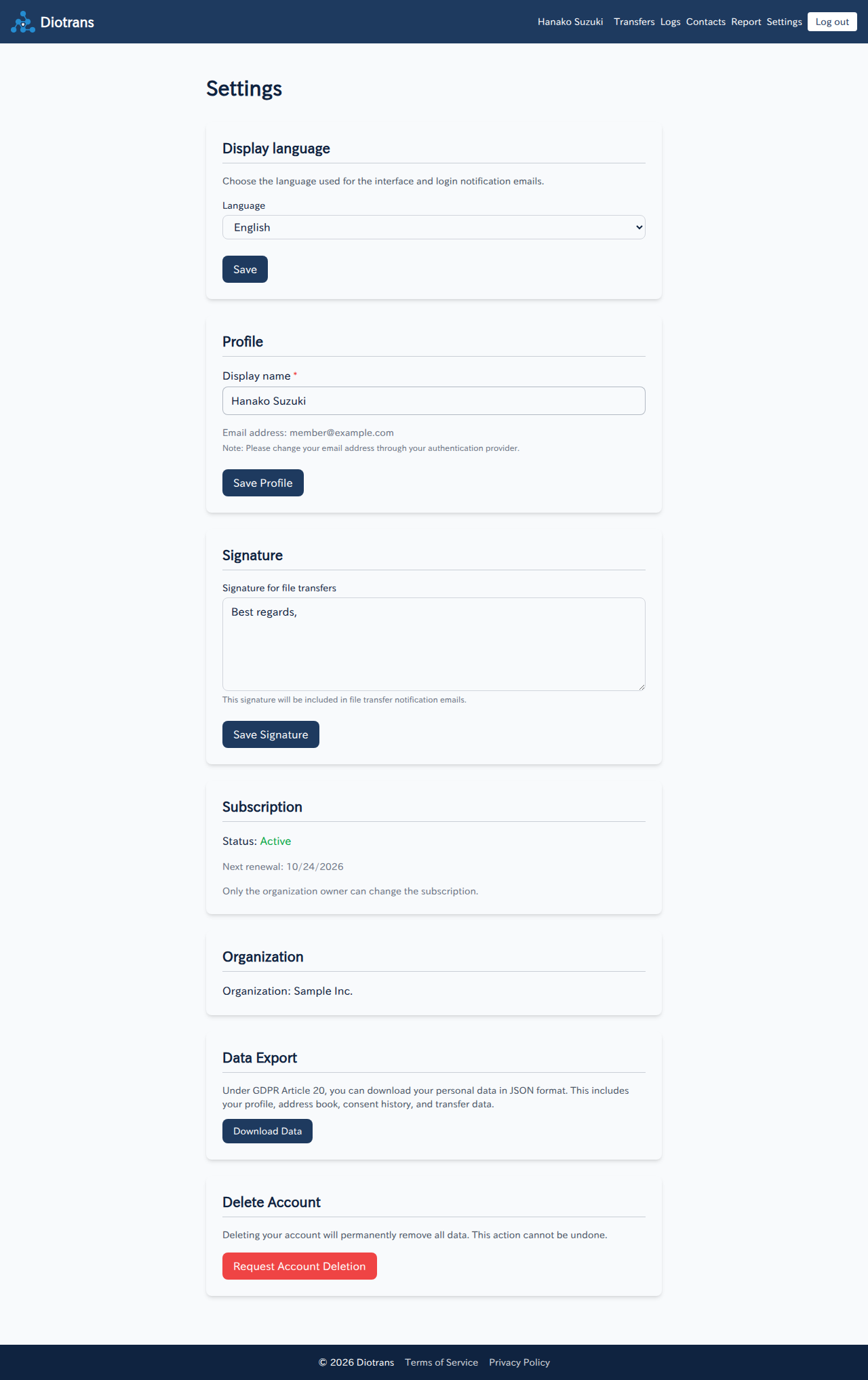
1Display language
Choose the language used for the screen and notification emails. The change applies after saving.
2Profile
You can change your display name. The display name appears in screens and emails. Your email address cannot be changed on this screen (see “Changing your email address” below).
3Signature
Set the signature included in file transfer notification emails. Each member can set their own signature.
4Subscription
Check your subscription status (for example, Active) and the next renewal date. Choose “Manage payment details” to open the Stripe customer portal to change your payment method or cancel. Only the organization owner can change the subscription. See Plans and billing for details.
5Organization
Your organization is shown here. The organization name, slug, time zone, and approval settings are changed by an administrator under Organization and storage.
6Changing your email address
For security, you cannot change your email address yourself. An administrator requests the change from the user edit screen, and you approve it from your current address.
An administrator enters the new address
An administrator opens “User management > Edit > Change email address”, enters the new address, and chooses “Request change”.
Approve from your current address
An approval email arrives at your current email address. Choose “Approve” in the email. The change is not made unless you approve it.
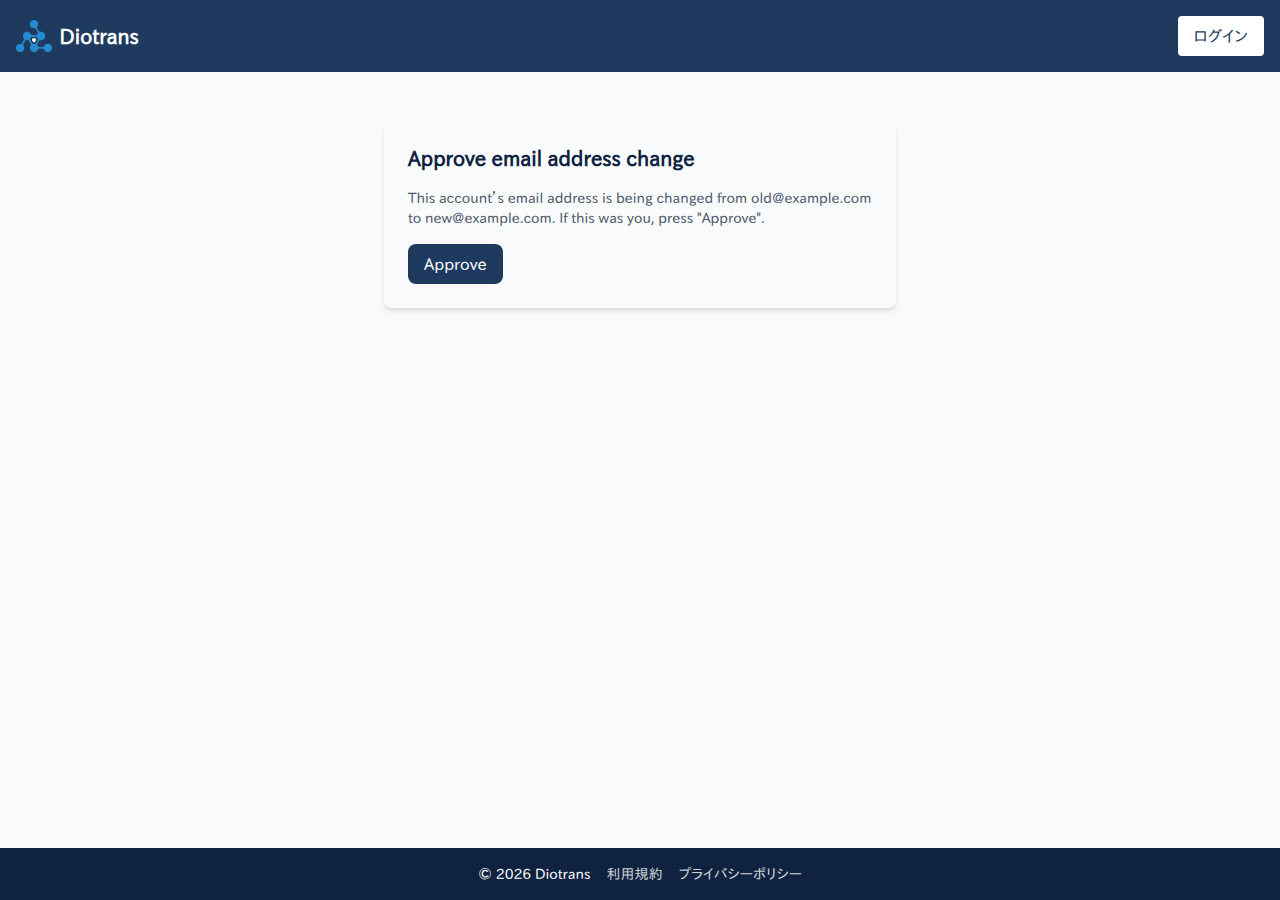
The approval screen. Only approve if you requested the change. Log in with the new address
After approval, log in with the new email address. You will need to log in again.
If you log in through your organization’s external OIDC (Microsoft Entra ID, Google, etc.), change your email address in the IdP. It is reflected in DioTrans at your next log-in.
7Data export
Under GDPR Article 20, you can download your personal data as JSON. It includes your profile, contacts, consent history, and transfer data.
8Account deletion
Choose “Request account deletion” to request deletion. All data is permanently deleted, and this cannot be undone. The organization owner cannot delete their account; transfer ownership to another administrator first under User management.