
Admin dashboard
Storage usage, login history, abuse alerts, and abuse reports at a glance.
This is the starting point for organization administrators and owners: roles, the admin menu, and how to read the dashboard every day.
| Role | What they can do |
|---|---|
| Owner | Everything an administrator can do, plus managing the subscription and billing and transferring ownership. The owner cannot delete the organization themselves, so transfer ownership to another administrator first. |
| Administrator | Manage users, approve transfers, configure the organization, storage, email, and SSO, post announcements, and handle reports. |
| Member | Send files, manage contacts, and change their own settings. Members cannot change organization settings or manage users. |
Administrators and owners see “Admin” and “Approvals” in the header.
Storage usage, login history, abuse alerts, and abuse reports at a glance.
List, add, edit, and remove members; change roles; request email address changes.
Review and approve or reject transfers created by members.
Organization name, slug, time zone, approval requirement, storage, SMTP, and OIDC.
Post maintenance notices in Japanese and English for all users.
Review transfer logs and abuse reports for auditing and follow-up.
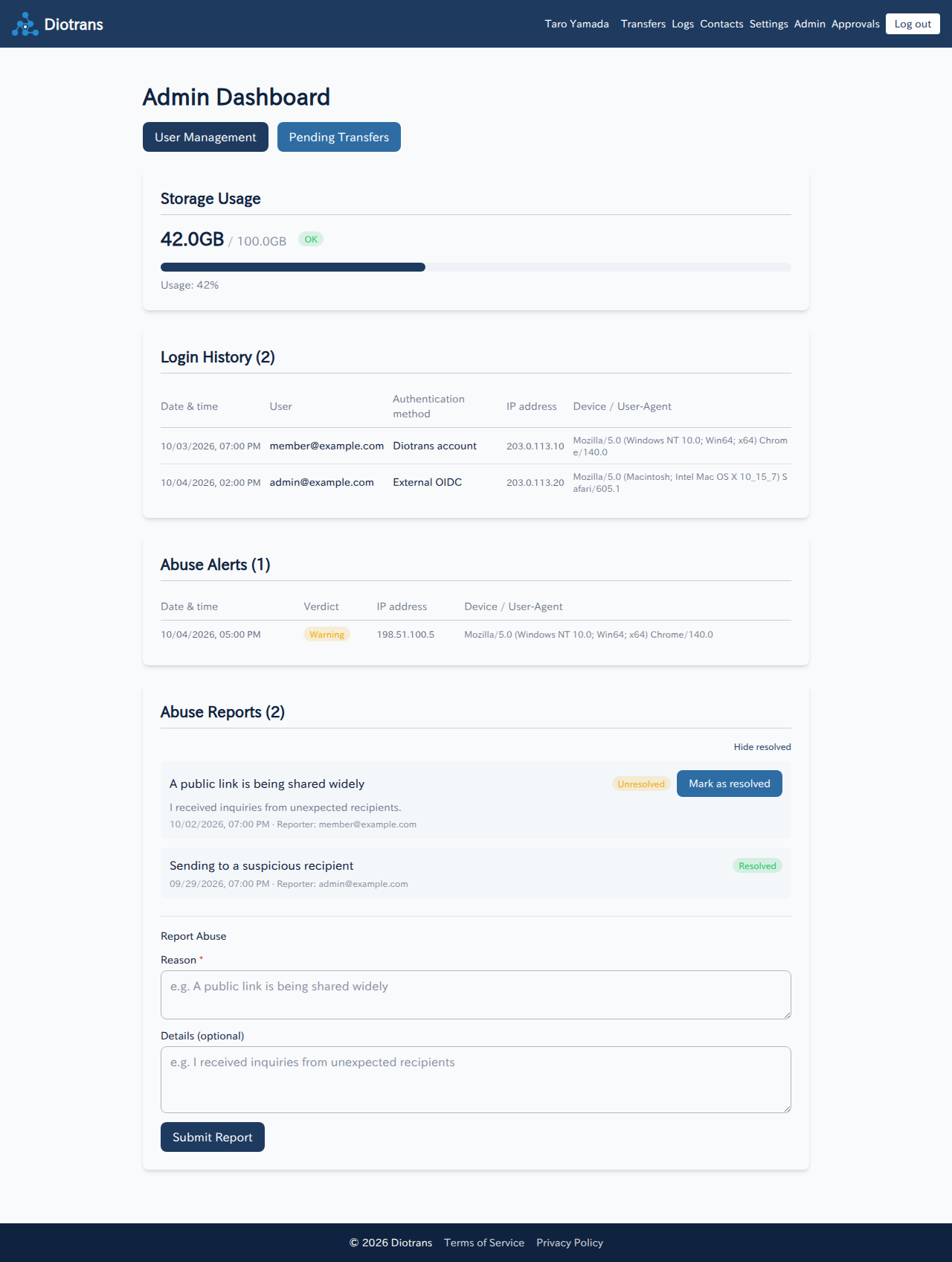
| Section | How to read it |
|---|---|
| Storage usage | When using DioTrans R2, check usage against the limit, the percentage, and the status (OK, warning, and so on). As you approach the limit, consider deleting unneeded transfers. |
| Login history | Check the date, user, authentication method (Diotrans account / external OIDC), IP address, and device. Review regularly for log-ins you do not recognize. |
| Abuse alerts | Accesses detected by the system, such as bursts of activity, together with a verdict (warning, etc.). |
| Abuse reports | Reports from members. Choose “Mark as resolved” when handled, or “Hide resolved” to show only unresolved reports. |
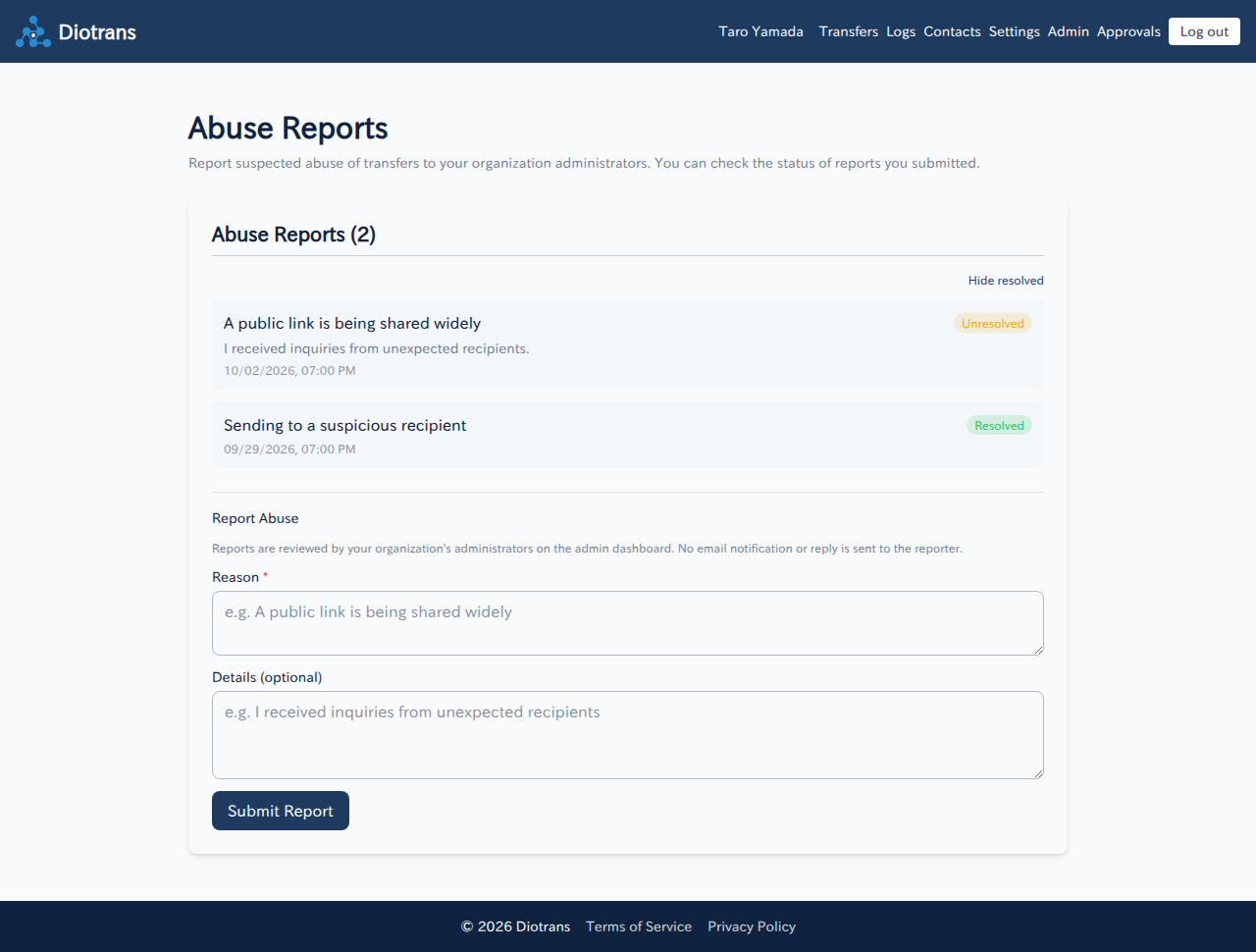
Administrators can also submit reports by entering a reason and optional details. Review them and, if needed, delete transfers or contact the people involved. See Announcements and audit for details.
When approval is required, member transfers appear under “Approvals”. Approving notifies the recipients; rejecting means the transfer is not sent. Transfers sent by administrators also require approval.
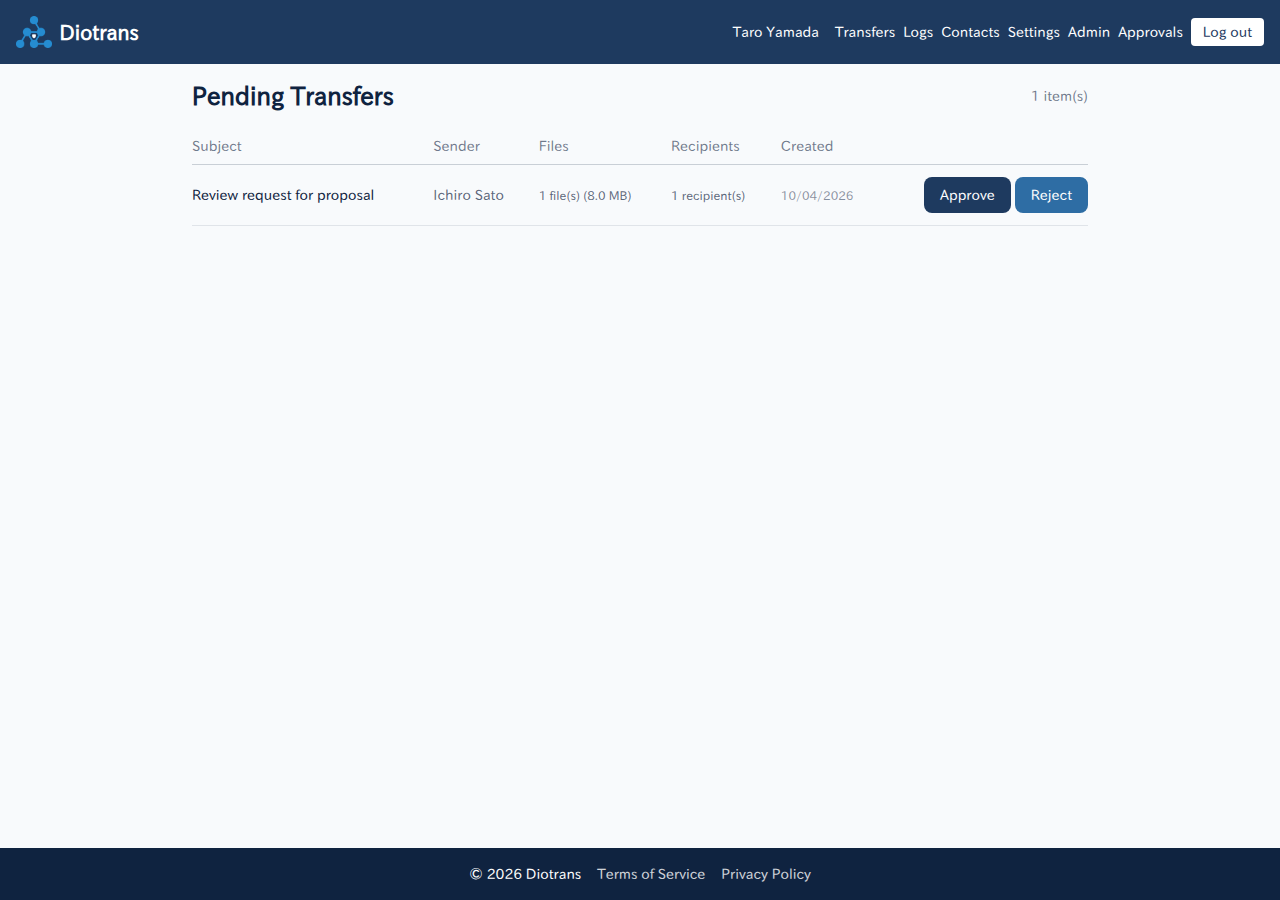
See Pending transfers for the detailed steps.