
Signing up and logging in
This page explains how to create an account and how to log in day to day. Authentication is handled by AWS Cognito, so password and multi-factor settings follow Cognito’s screens.
1Sign-up flow
Open the app and choose “Get Started”
Start from “Get Started” at the top right or in the center of the app’s top page.
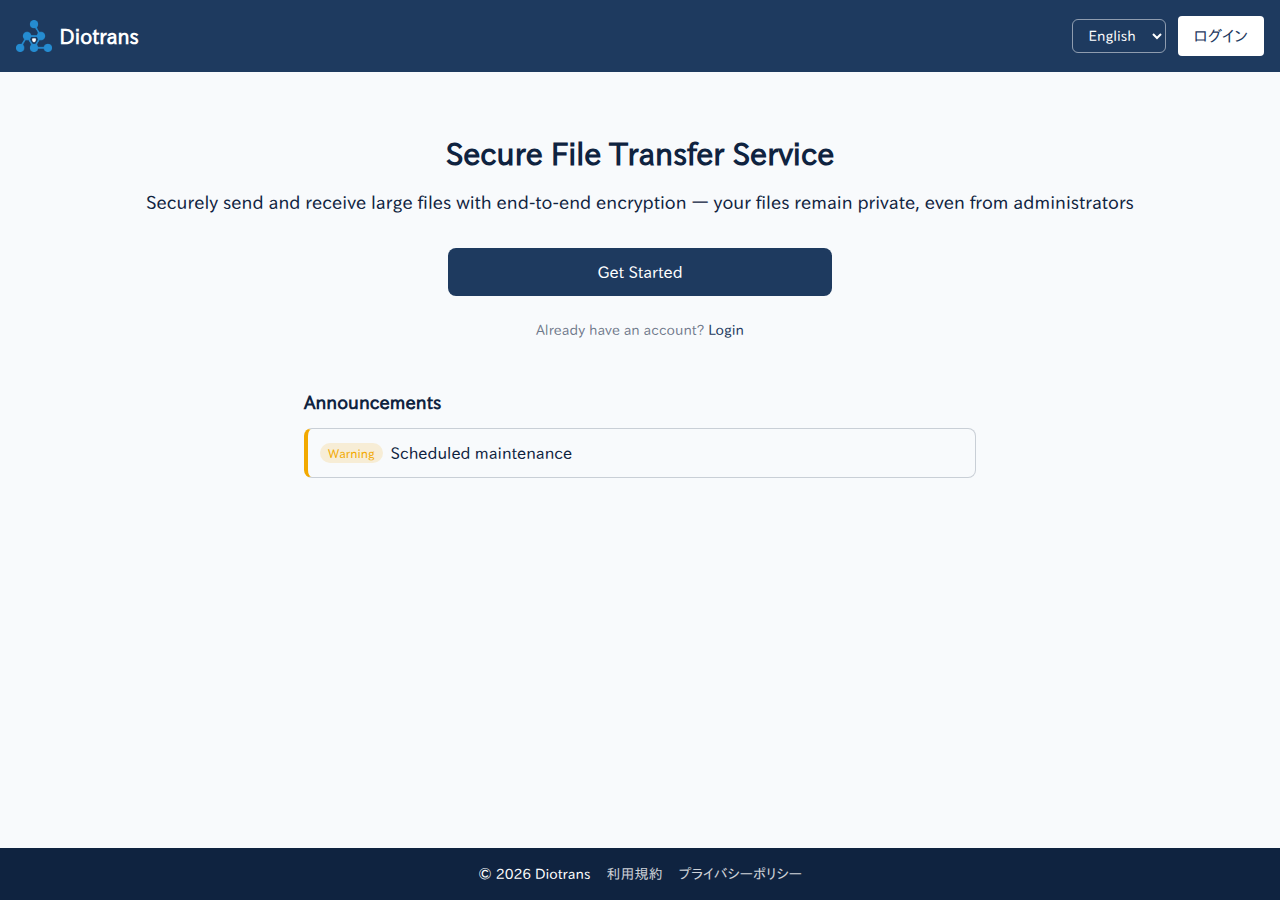
The app top page (logged out). If you already have an account, choose Log in. Register your email address and password
The sign-up form is AWS Cognito’s standard screen. Enter your email address and password, and a verification code will be sent to you.
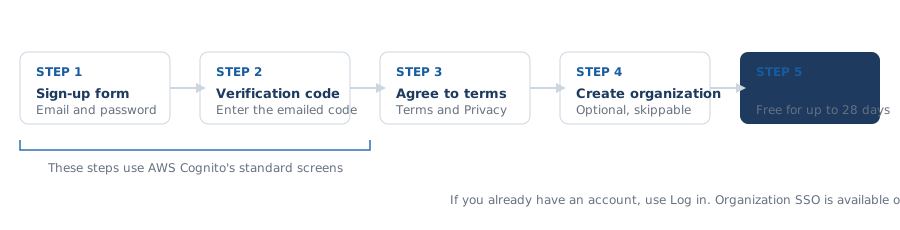
The sign-up flow. The first two steps use AWS Cognito’s standard screens. Enter the verification code
Enter the code from the email to complete registration. If it does not arrive, check your spam folder and use the resend option on the screen.
Agree to the Terms of Service and Privacy Policy
The consent screen appears after your first log-in. Read both documents with “Read full text”, tick the agreement box, and choose “Agree”. The content and time of your consent are recorded.
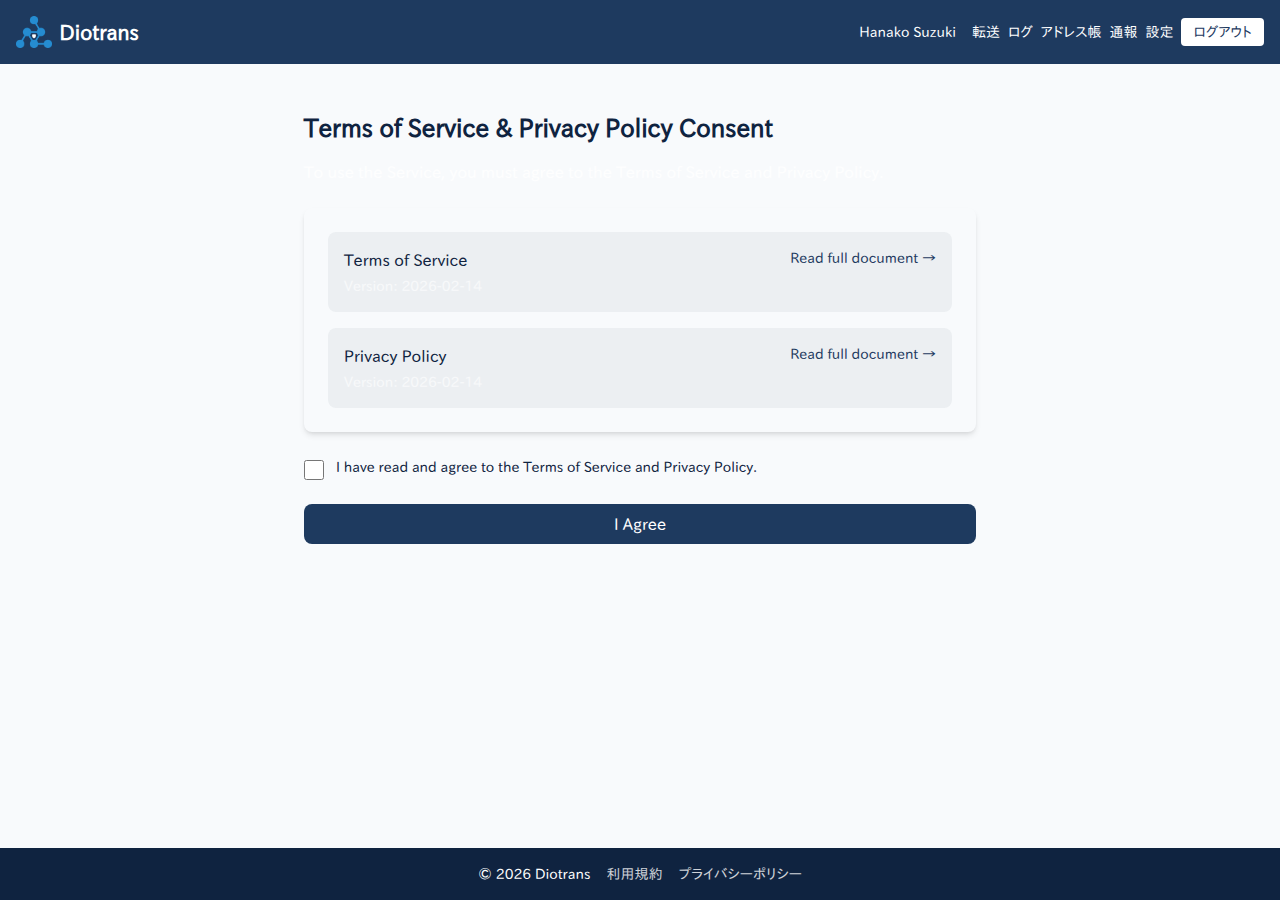
The consent screen. “Agree” stays disabled until the box is ticked. Create an organization (optional)
Creating an organization lets you invite members and share transfers. You become the owner and an administrator, and can add members later. If you choose “Skip to settings”, a default organization named “(your name)’s Organization” is created at your first log-in.
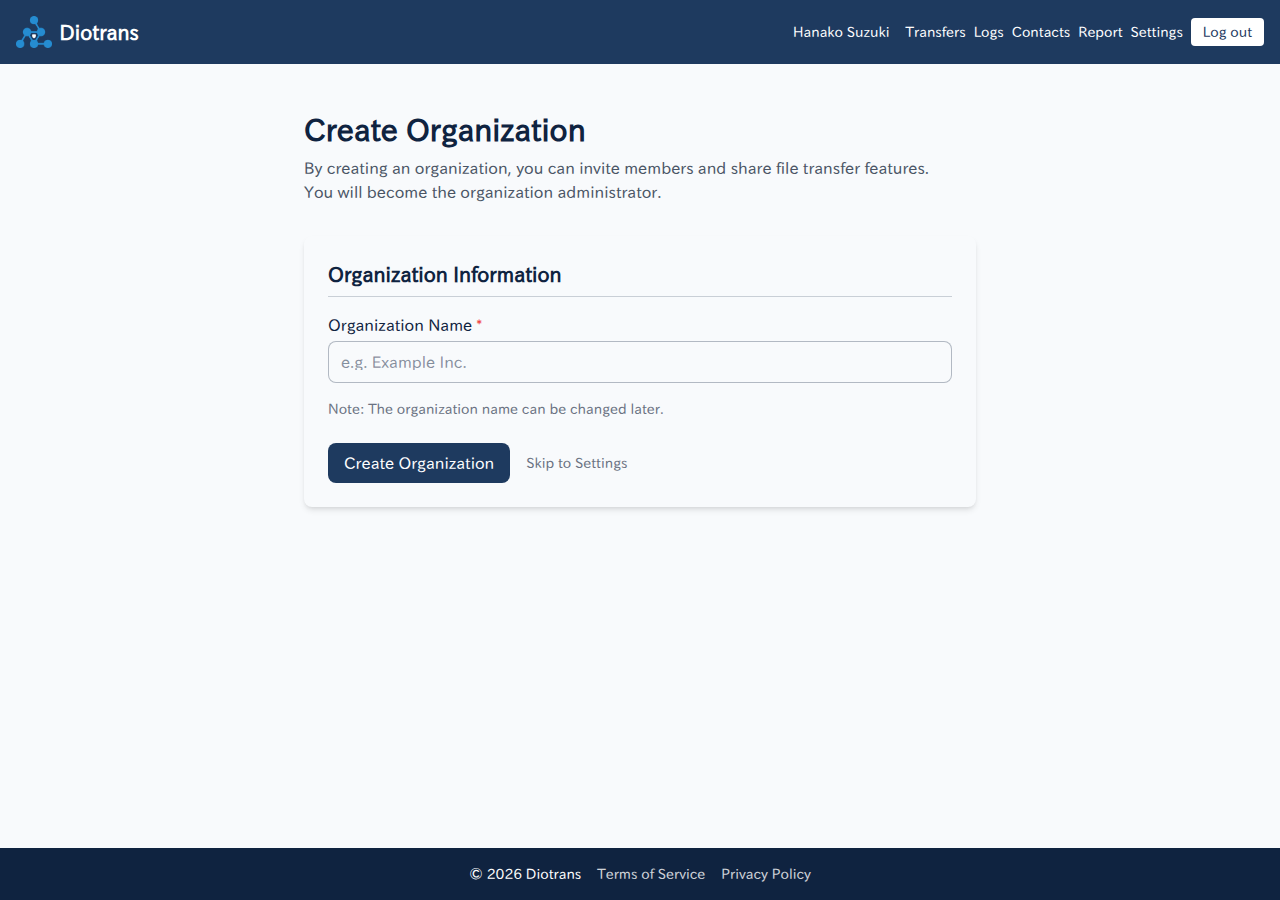
You can rename the organization later. See the Administrator manual for organization settings.
2Logging in
Log in with a DioTrans account
Choose “Log in with Diotrans account” on the log-in screen and enter your email address and password. If you have enabled multi-factor authentication (MFA), you will be asked for an additional code.
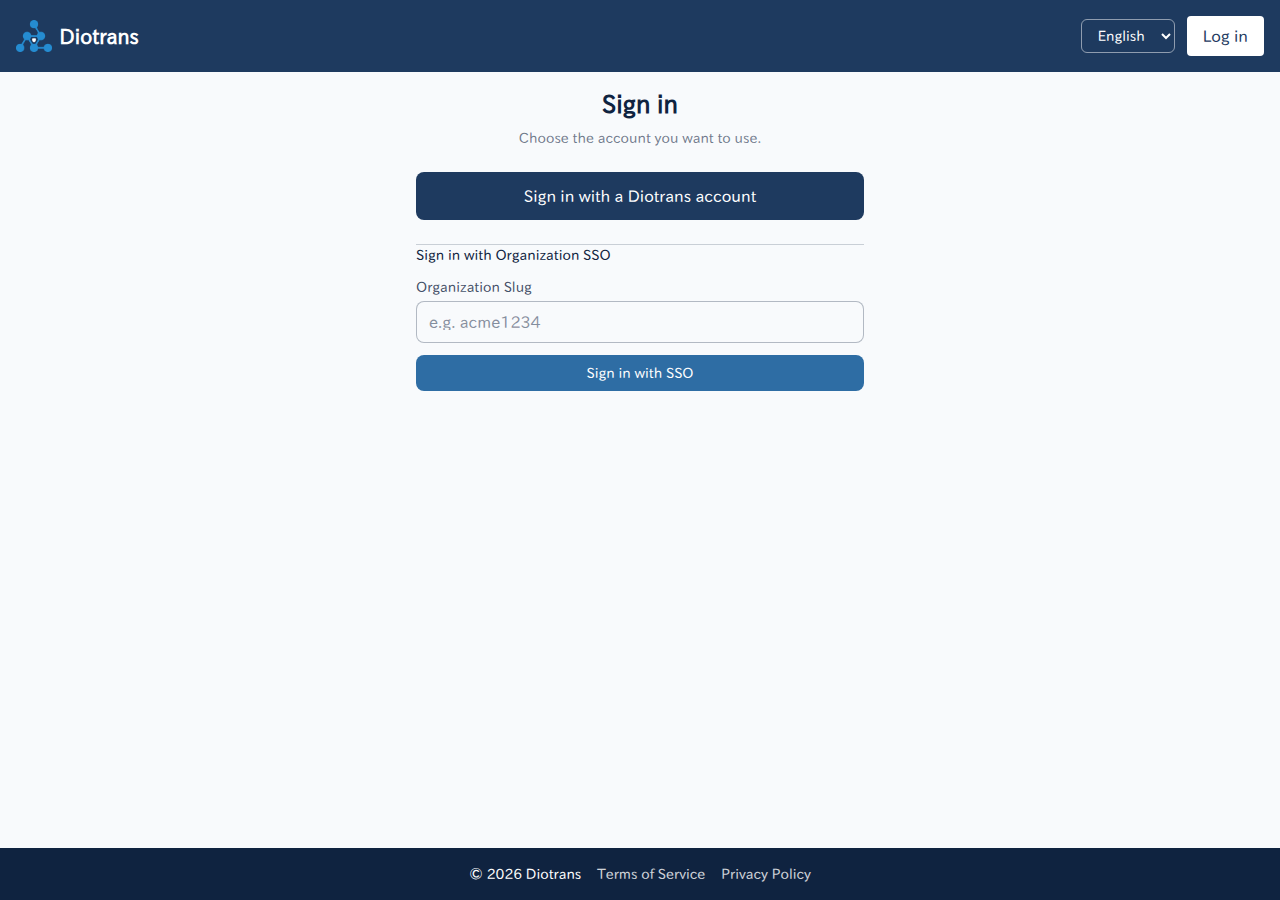
Log in with organization SSO
This is available only when an administrator has configured external OIDC (SSO). Enter the organization slug (for example sample-inc) and choose “Log in with SSO”. Ask your administrator if you do not know the slug. Password management is handled by your organization’s IdP.
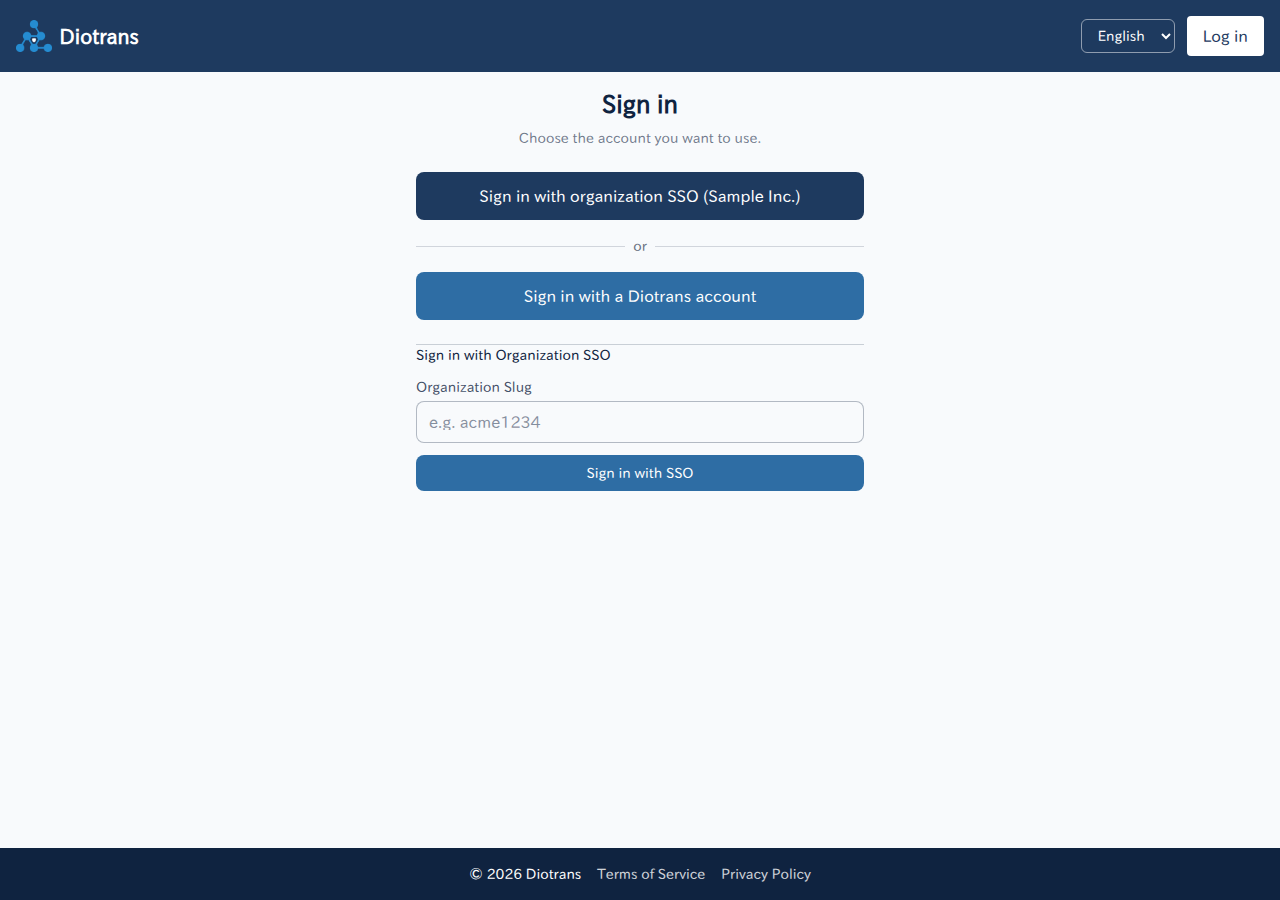
To log out, use “Log out” at the right end of the header. Always log out on shared devices.
3Troubleshooting
| Problem | What to check |
|---|---|
| The verification code does not arrive | Check your spam folder, wait a few minutes, and resend. If it still does not arrive, confirm that the email address you entered is correct. |
| I forgot my password | Use “Forgot your password?” on the log-in screen. MFA and passkeys are managed on Cognito’s screens. |
| I cannot log in with SSO | Check the organization slug. If it still fails, ask your administrator to check the OIDC configuration. |
| I see a log-in I do not recognize | Change your password and tell your administrator. Administrators can check the login history and abuse alerts in the dashboard. |
Once you have signed up and agreed to the terms, choose where your files will be stored. See Trial period and storage.