
User management
Add members to your organization and manage their roles. Only administrators and owners can access user management and organization settings.
1The user list
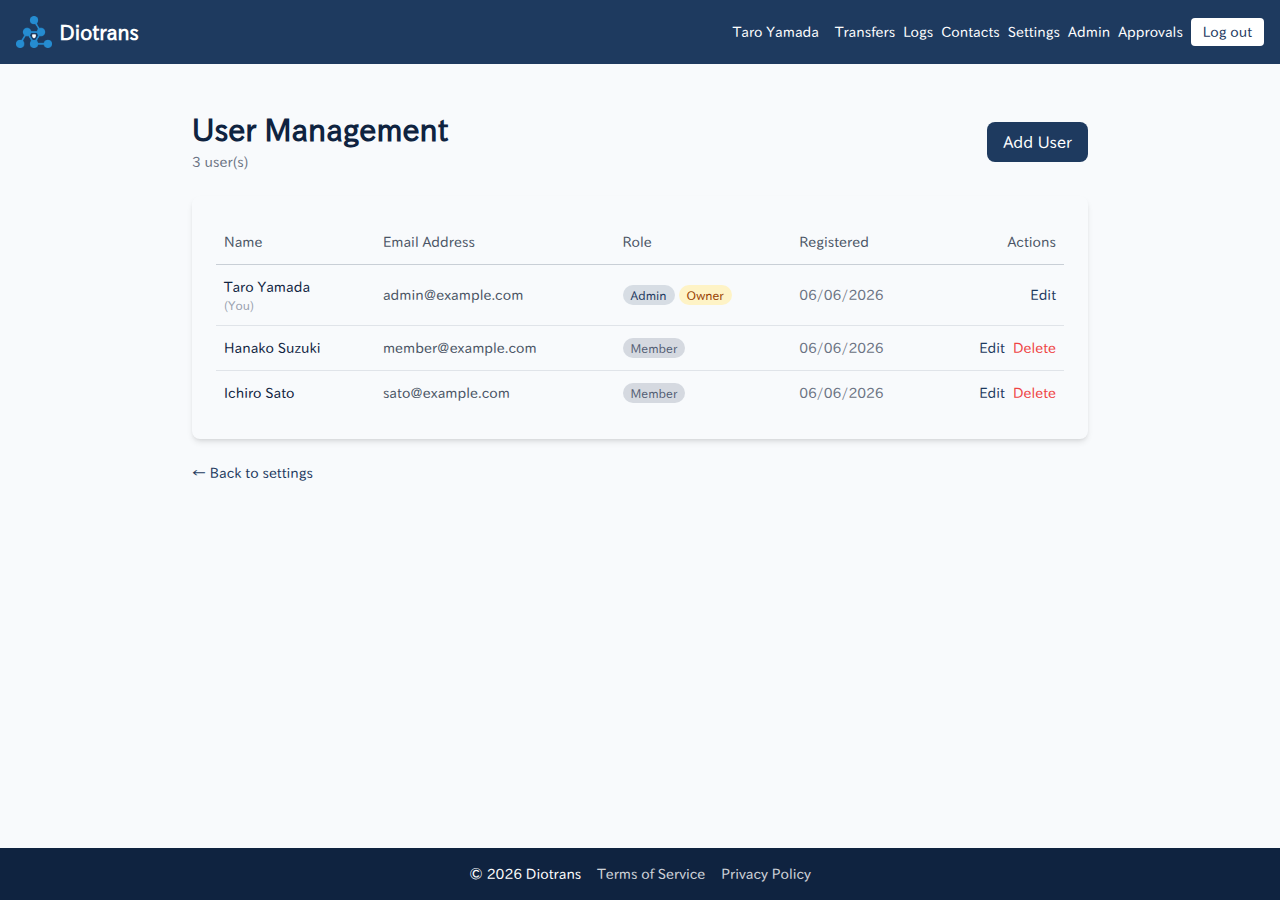
Open “Admin > User management” to list the members of your organization. The name, email address, role, registration date, and actions (edit, delete) are shown.
2Adding a user
Choose “Add user”
Open the form from the top right of the list.
Enter the email address, name, and role
Enter the new user’s details. Choose “Member” or “Administrator” as the role.
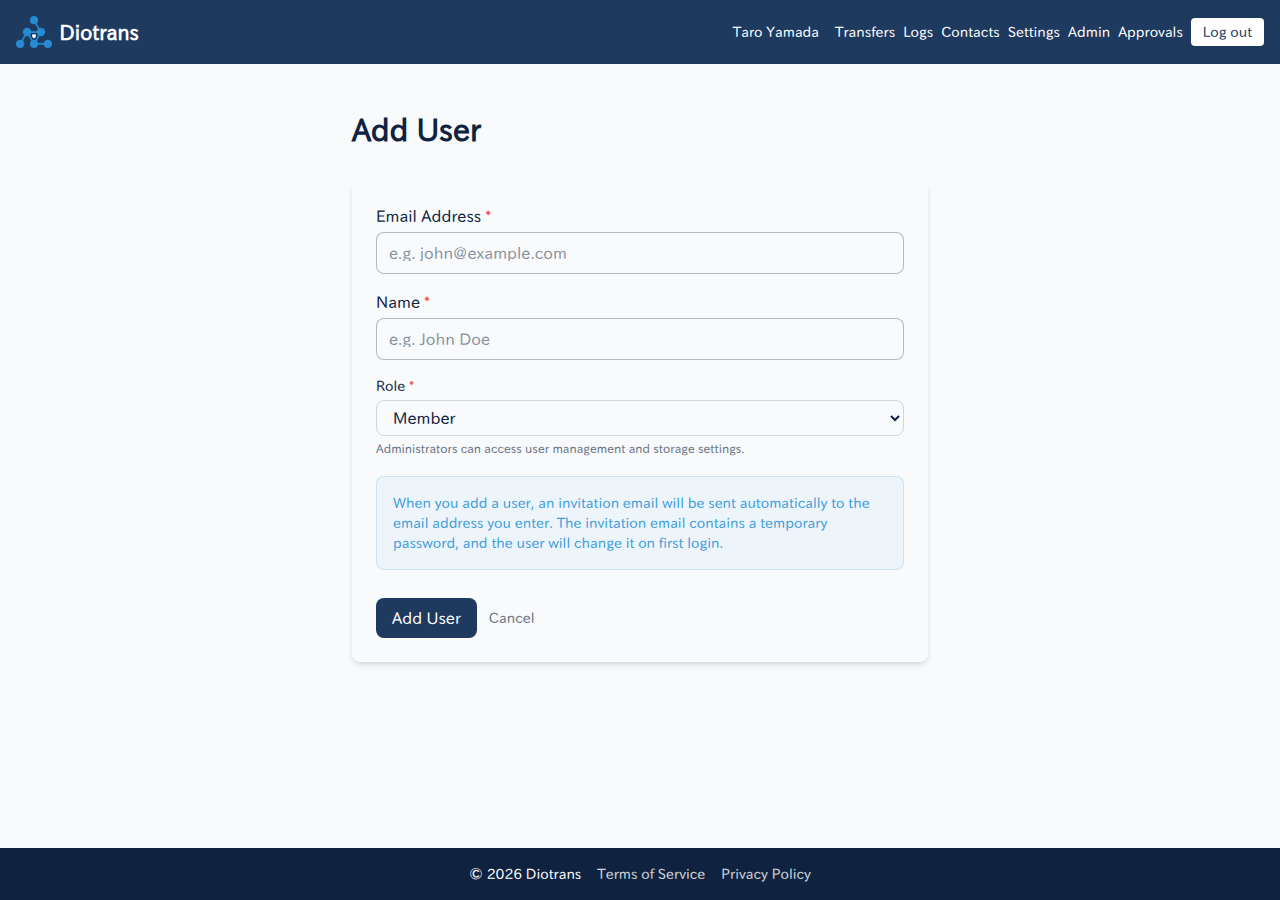
Adding a user. Send the invitation
Saving sends an invitation email. The user follows it to log in for the first time.
3Editing users and changing roles
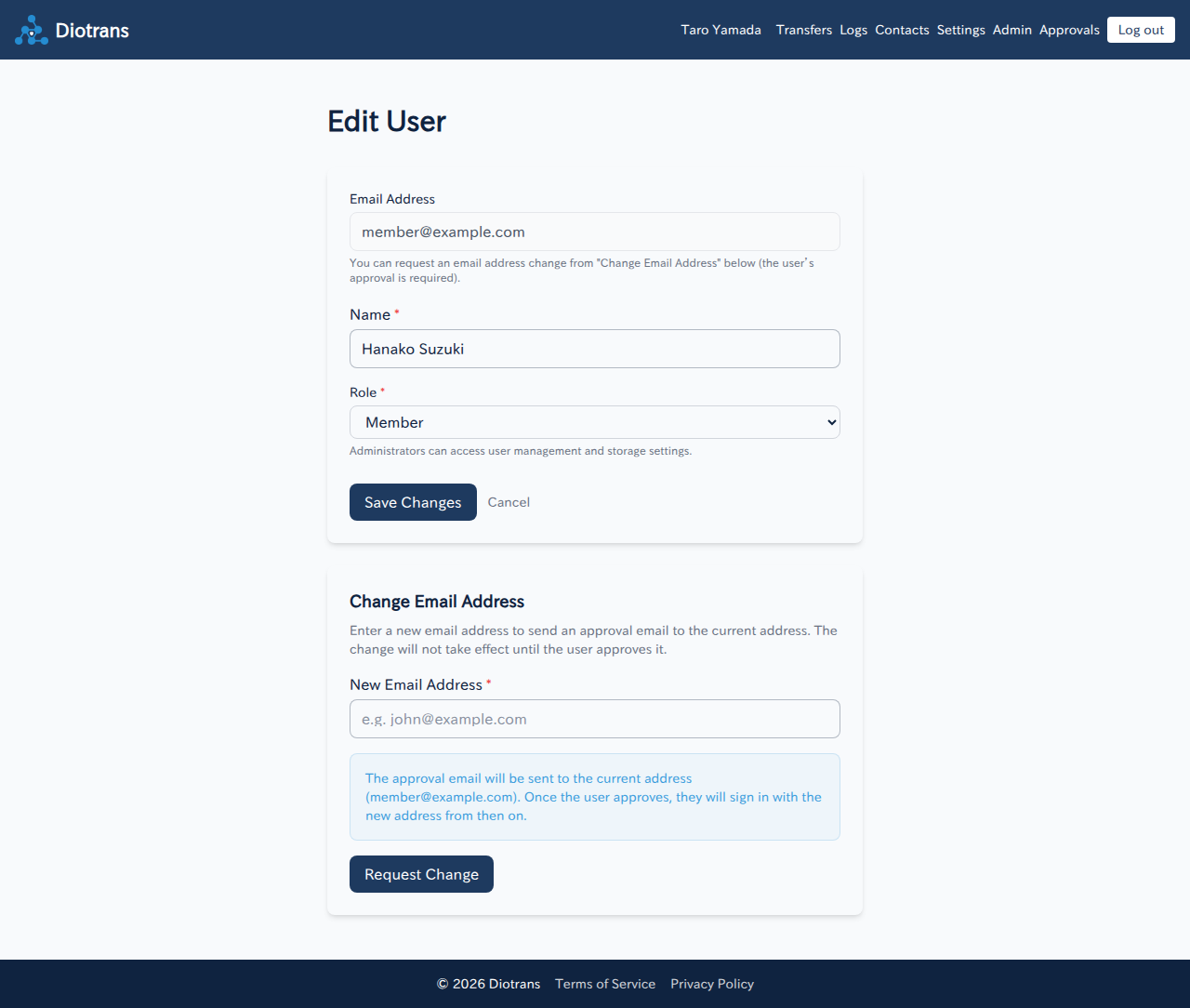
Choose “Edit” in the list to change the name and role. Making a user an administrator lets them access user management and storage settings.
| Restriction | Description |
|---|---|
| Deleting yourself | You cannot delete yourself. |
| The last administrator | If the organization has only one administrator, that administrator cannot be deleted. Make another user an administrator first. |
| Users with transfer data | A user with remaining transfer data cannot be deleted. |
| The owner | The owner cannot be deleted. Transfer ownership to another administrator first. |
4Changing an email address
An administrator requests the change, and the user approves it from their current address.
Enter the new address and request the change
In “Change email address” on the edit screen, enter the new email address and choose “Request change”. The approval email goes to the current address.
The user approves
The user chooses “Approve” in the email sent to their current address, which completes the change. Until then, nothing changes.
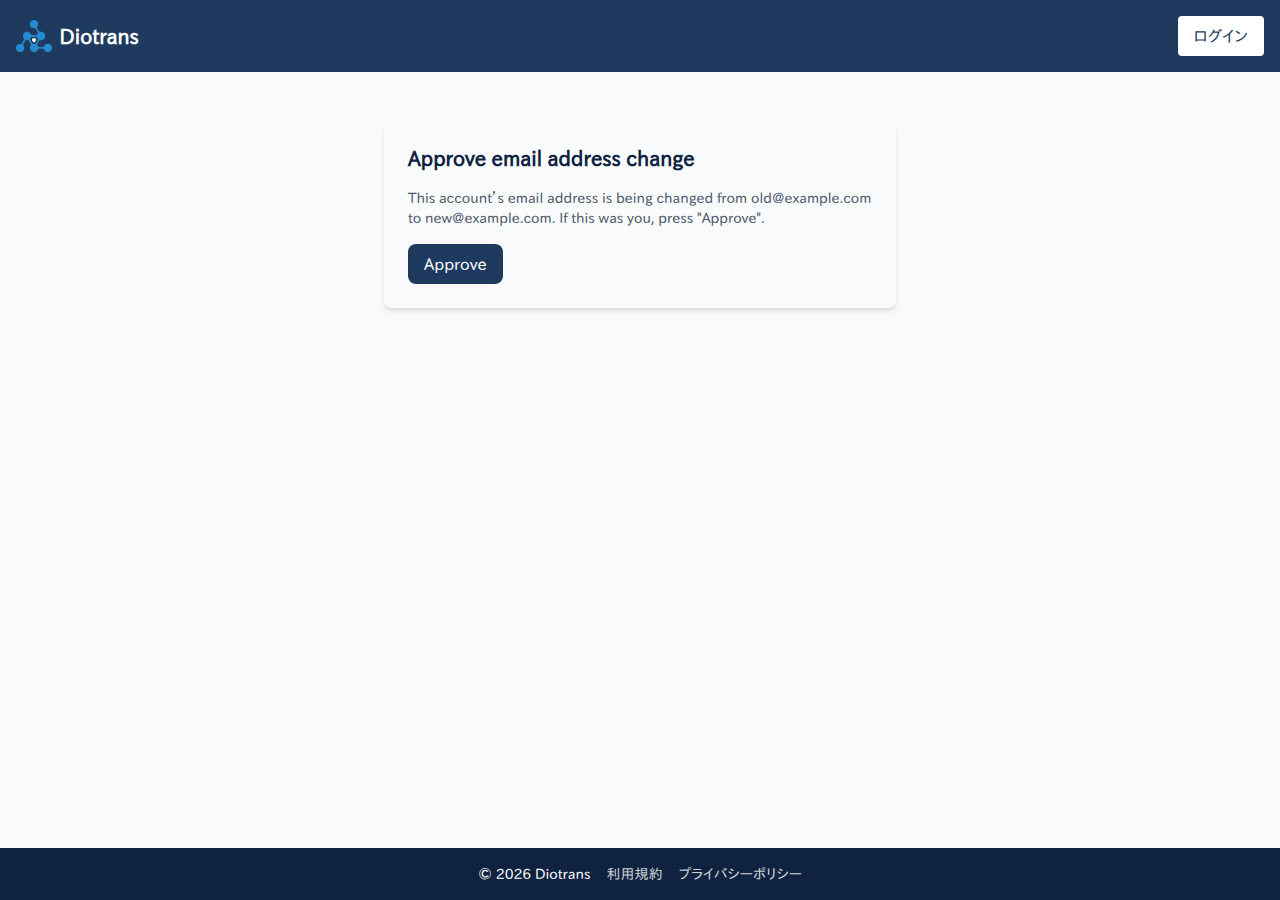
The approval screen. The change is confirmed only when the user approves.
For users who log in with external OIDC, change the email address in the IdP.
5Transferring ownership
The owner manages the subscription and billing. Transferring ownership from the edit screen means you will no longer manage billing. The owner cannot be deleted, so transfer ownership before reorganizing the organization.