
Organization and storage
Configure your organization’s basic information and where files are stored. Only administrators and owners can change organization settings.
1Organization settings
Under “Settings > Organization”, you can set the organization name, slug, time zone, and whether approval is required.
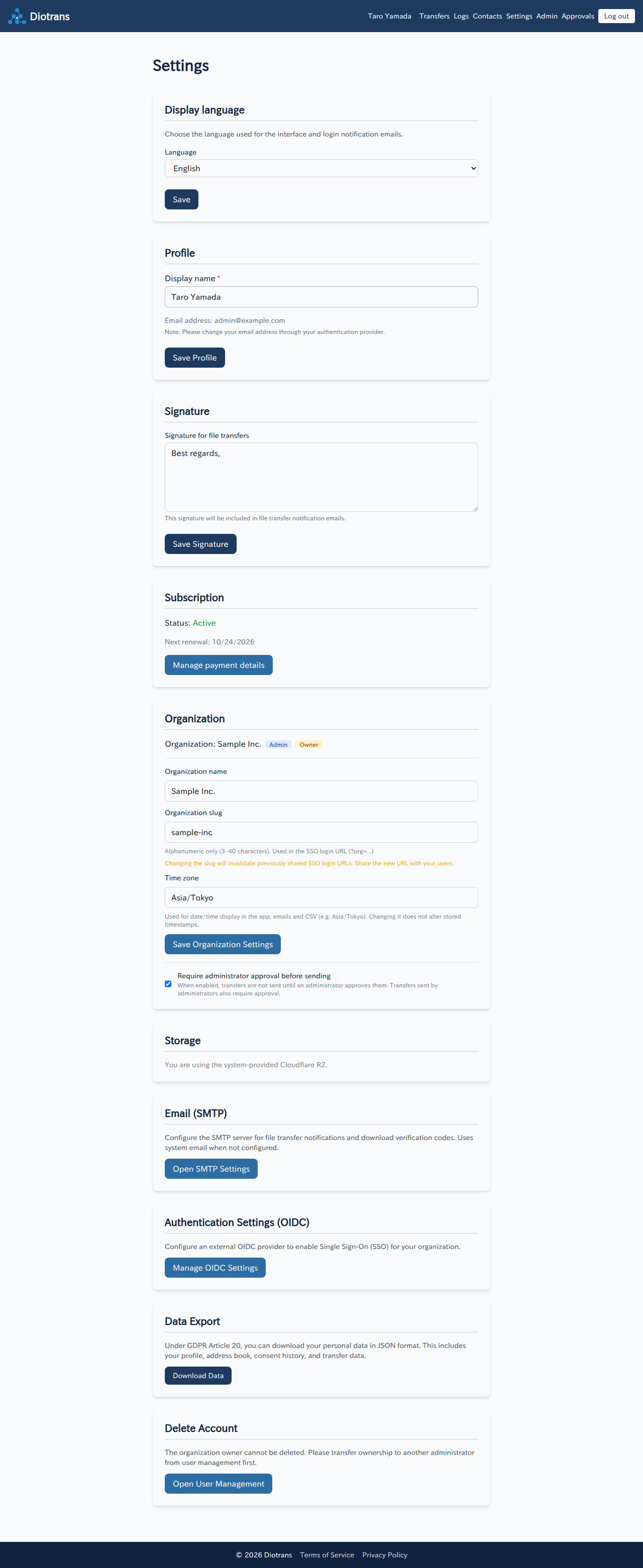
| Item | Description |
|---|---|
| Organization name | The name shown in screens and emails. You can change it at any time. |
| Organization slug | Letters, numbers, and hyphens (3–40 characters). Used in the organization SSO log-in URL. Changing it invalidates previously shared SSO URLs, so tell users about the new URL. |
| Time zone | Used for dates and times shown in screens and emails (for example, Asia/Tokyo). Changing it does not alter times already saved. |
| Require administrator approval before sending | When enabled, member and administrator transfers wait for approval. Disabling it returns to immediate notification. |
2Storage settings
Under “Settings > Storage”, check the current connection and change it. When using DioTrans R2, the screen shows “Using system-provided Cloudflare R2”.
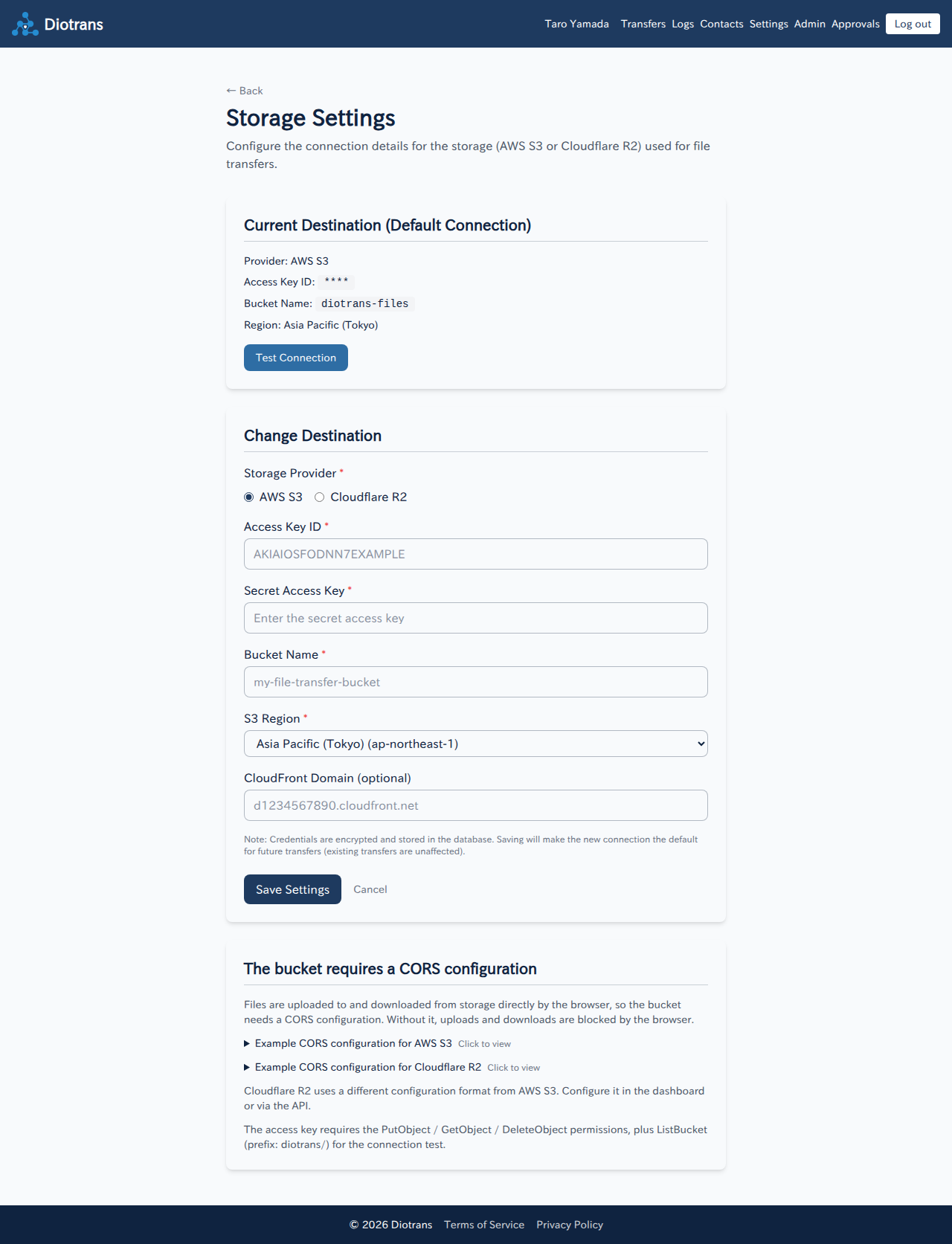
- Changing the connection does not affect transfers created earlier: they keep using the connection that existed when they were created, so receiving and expiry cleanup are unaffected.
- Credentials are stored encrypted in the database.
- Without CORS, browser uploads and downloads are blocked. Check the examples on the settings screen.
See Trial period and storage for preparing and configuring the connection.
3Plans and billing
Only the owner can manage subscriptions and billing. See Plans and billing for checking plans, changing payment methods, and cancelling.